Getting Started — Your Books Account
Welcome! 👋 This guide shows you how to set up your account one time, then use it for all your books and audiobooks. It is easy. Just follow the steps.
Step 1 — Open your invite link
You will get an invite link. It comes from a tool called Authentik. Think of Authentik as the front door to all your apps.
- Click the invite link.
- A sign-up page opens.
- Pick a username, type your email, and make a password.
- Click the button to finish.
That's it! This one account is your key to everything.
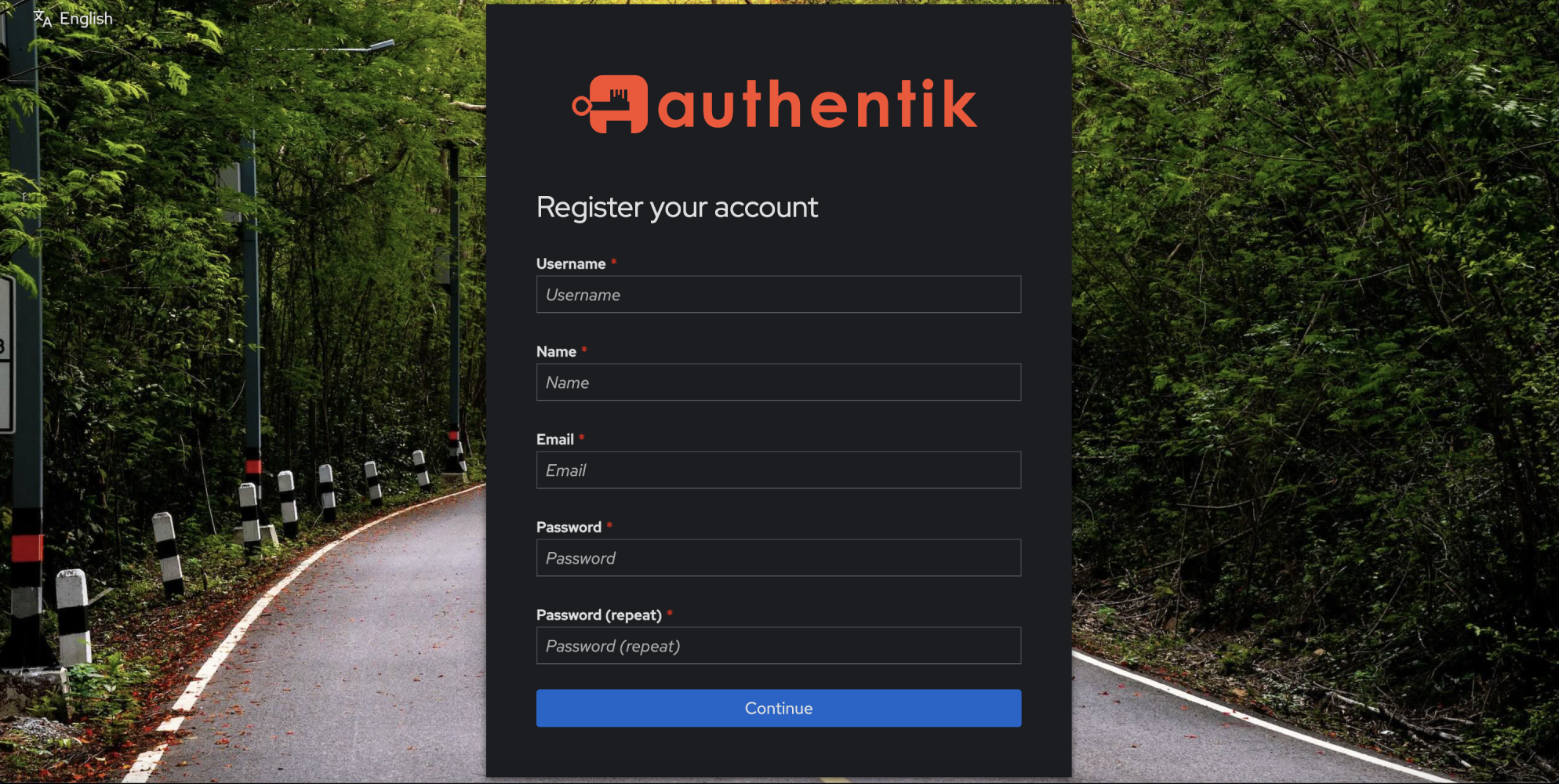 The sign-up page — pick a username, enter your email, and make a password.
Keep your login safe
Write your username and password somewhere safe. You will use the same login for every app.
Step 2 — One account for everything
Your account uses SSO. SSO is short for Single Sign-On. In plain words:
One login works for everything.
When an app asks you to sign in, you pick "Sign in with Authentik" and use the same username and password every time. You never need a second account.
Your books apps
Here are your apps. You can open any of them in a web browser:
| App | What it does | Web address |
|---|---|---|
| CWA | Read ebooks | https://cwa.mainertoo.com |
| Audiobookshelf | Listen to audiobooks | https://audiobookshelf.mainertoo.com |
| Readmeabook | Ask for a new audiobook | https://readmeabook.mainertoo.com |
| Shelfmark | Ask for a new ebook | https://shelfmark.mainertoo.com |
Not sure where to start? Go to the main page and pick from there:
👉 https://authentik.mainertoo.com — this shows all your apps in one place.
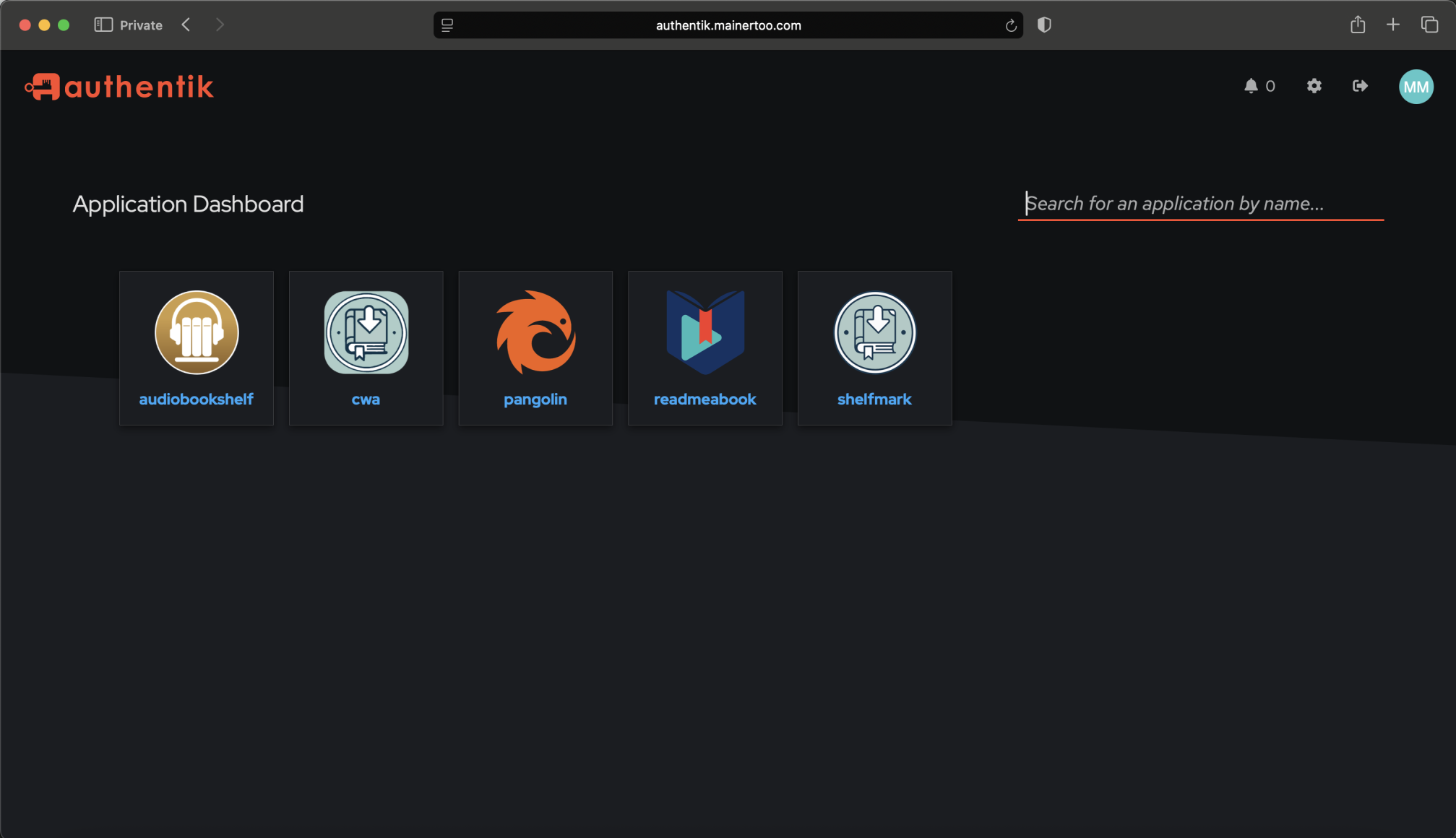 The Authentik home page shows a tile for each of your apps.
How to sign in to an app
- Open the app's web address, or click its tile on the Authentik home page.
- Click "Sign in with Authentik". It may also say SSO.
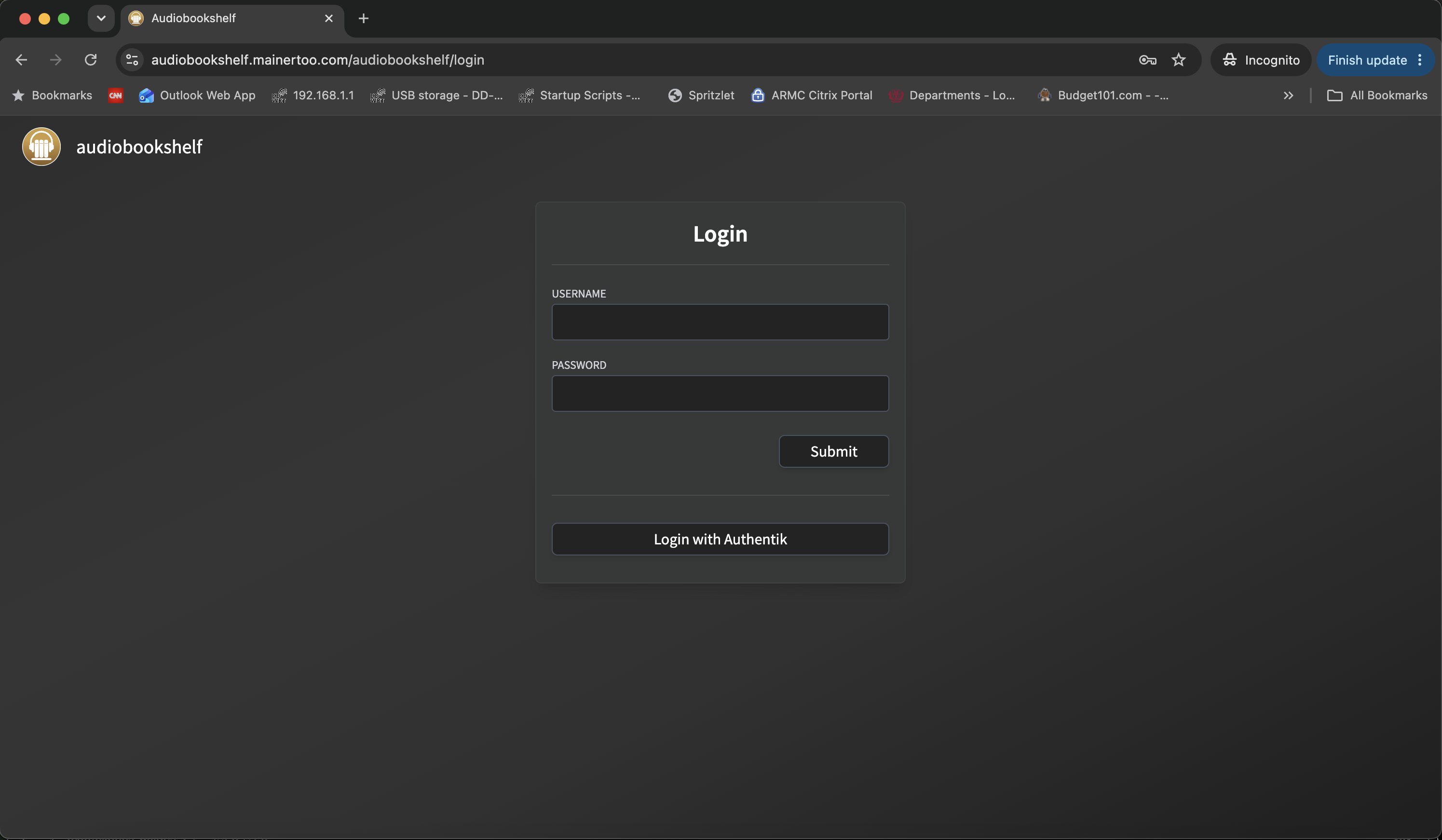 Click "Sign in with Authentik".
You may see an extra page first
Some apps have extra protection and send you through a Pangolin page on the way in. This is normal — just keep going.
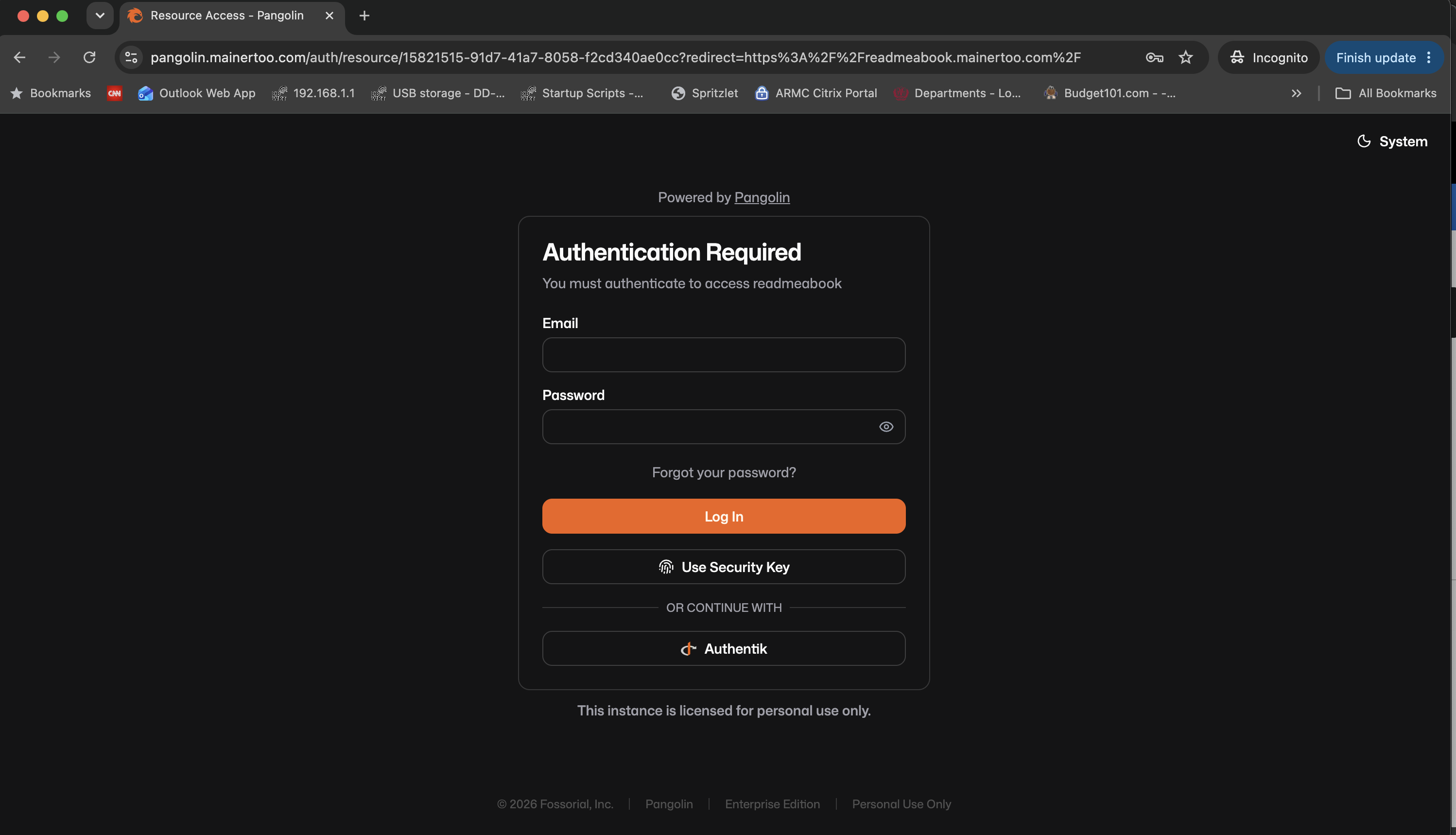
- Choose "Authentik" (it may also say "SSO" or "Login with Authentik"), then type your username and password.
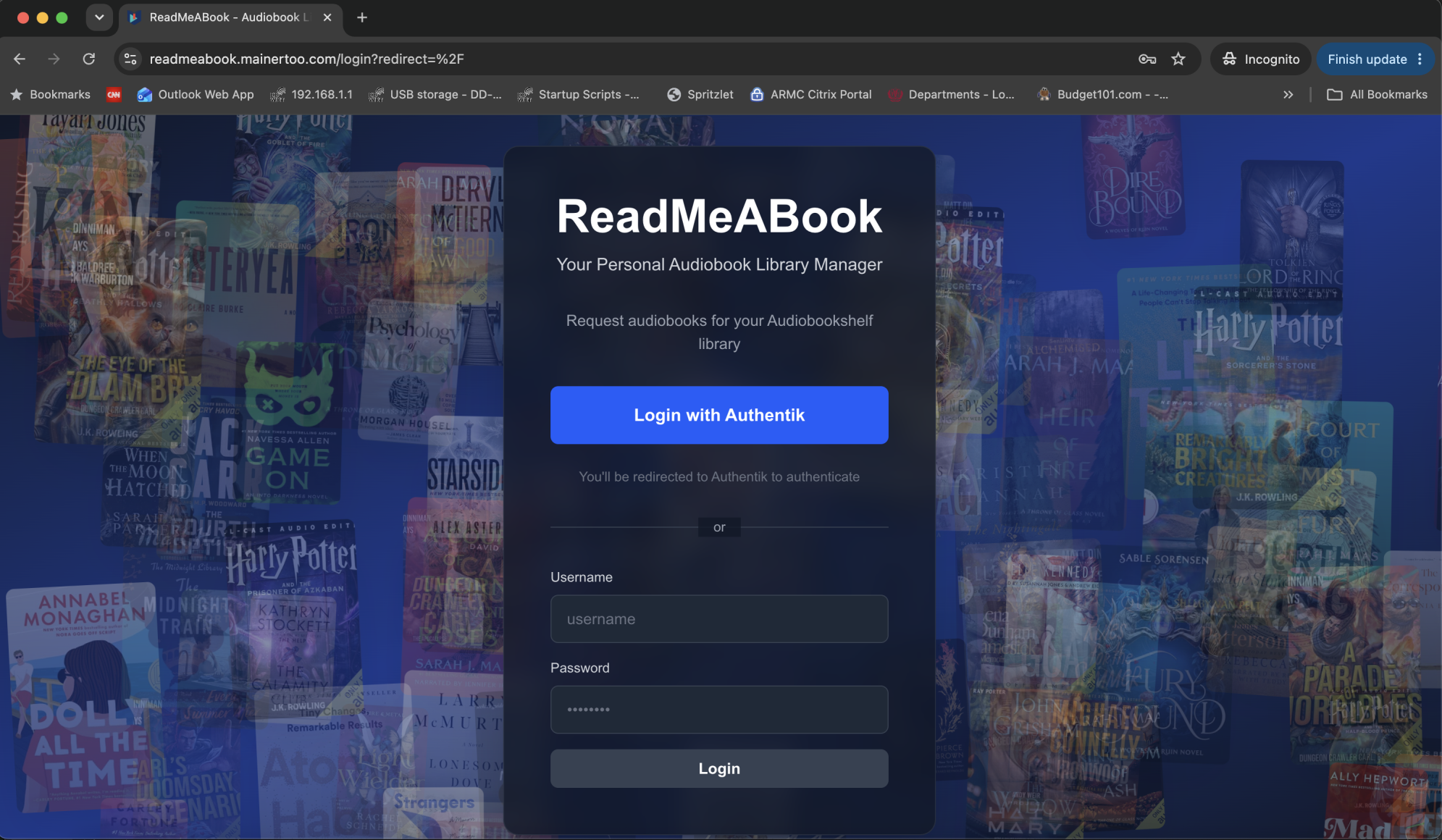
- You're in! 🎉
Read ebooks in CWA
Please Note: CWA is a website. This can function much like an app on your phone, tablet or computer but it is not a downloadable App itself.
When you open a book in CWA, you do not have to read it in the web app if you would rather not. You have three easy choices — pick whichever you like, and you can use a different one for each book:
- Read it in your web browser (CWA website). Click the book and start reading. Nothing to install.
- Download it to your device. Tap Download, then open the file with your device's built-in reader — like the Books app on an iPhone or iPad.
- Send it to your Kindle. Add your Send-to-Kindle email in CWA settings one time. After that, you can send any book straight to your Kindle with the "Email to my Kindle" button — no web app needed.
Setting up Kindle email
Your Send-to-Kindle email looks like yourname@kindle.com. You set it once in
your CWA account settings. (Amazon also has to allow emails from CWA, you will likely need to "accept" the book on your 'yourname@kindle.com', built in spam protection — ask
the person who sent your invite if you are not sure.)
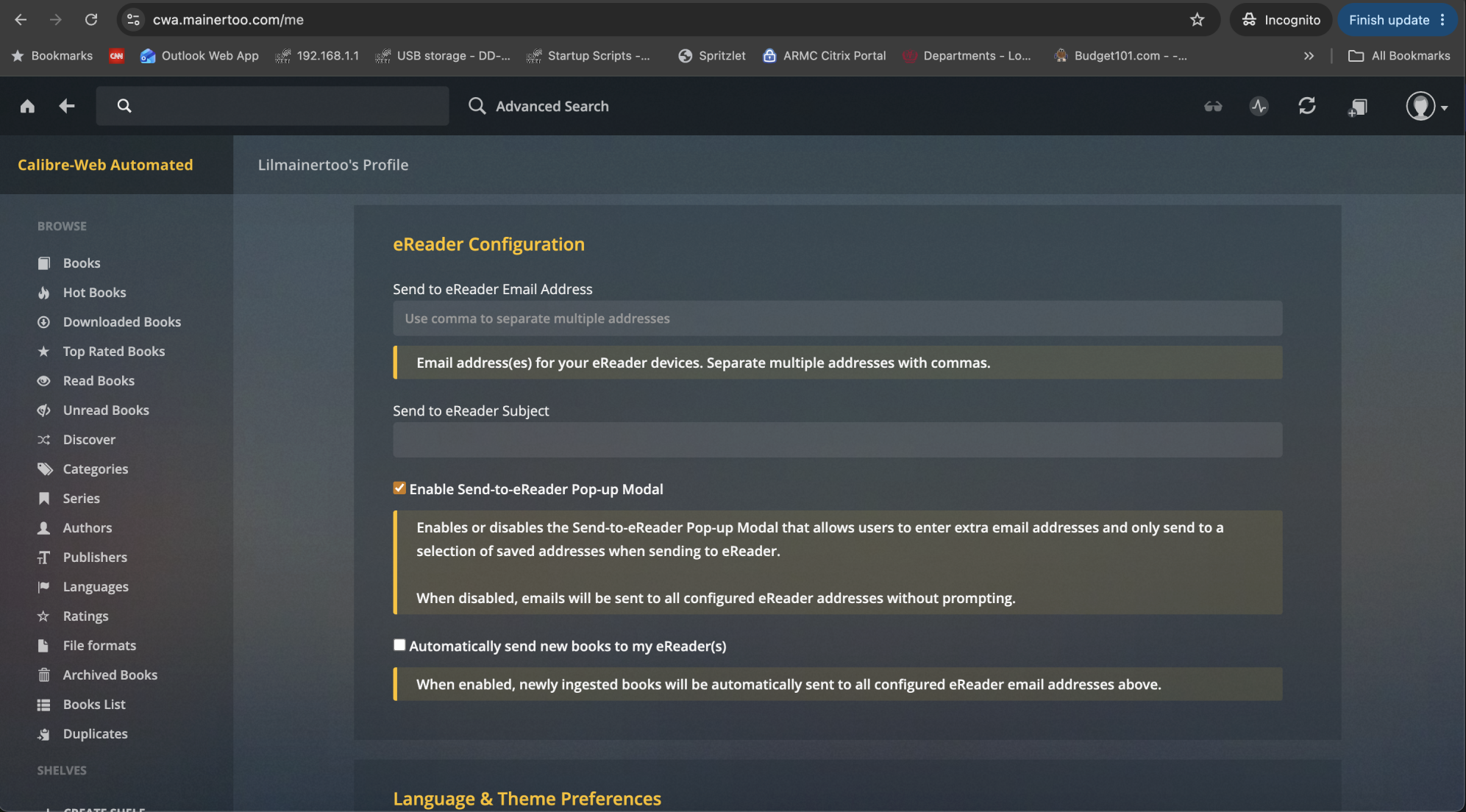 The CWA settings page, where you type your Send-to-Kindle email.
Listen to audiobooks on your phone
You can listen right in your web browser. But a phone app is nicer — and it lets you save audiobooks on your phone to listen without internet.
Open the App Store and pick one of these two apps:
- Plappa
- Audiobooth
Both apps work with your one account. Here's how to set one up:
- Install Plappa or Audiobooth from the App Store. Audiobooth is reccomended as it appears to be a more polished app but both will work. Apologies to Android users, I don't have a device to test.
- Open the app.
-
When it asks for a server address, type:
-
Sign in with Authentik / SSO — the same username and password.
- Now you can listen, and download audiobooks to keep on your phone.
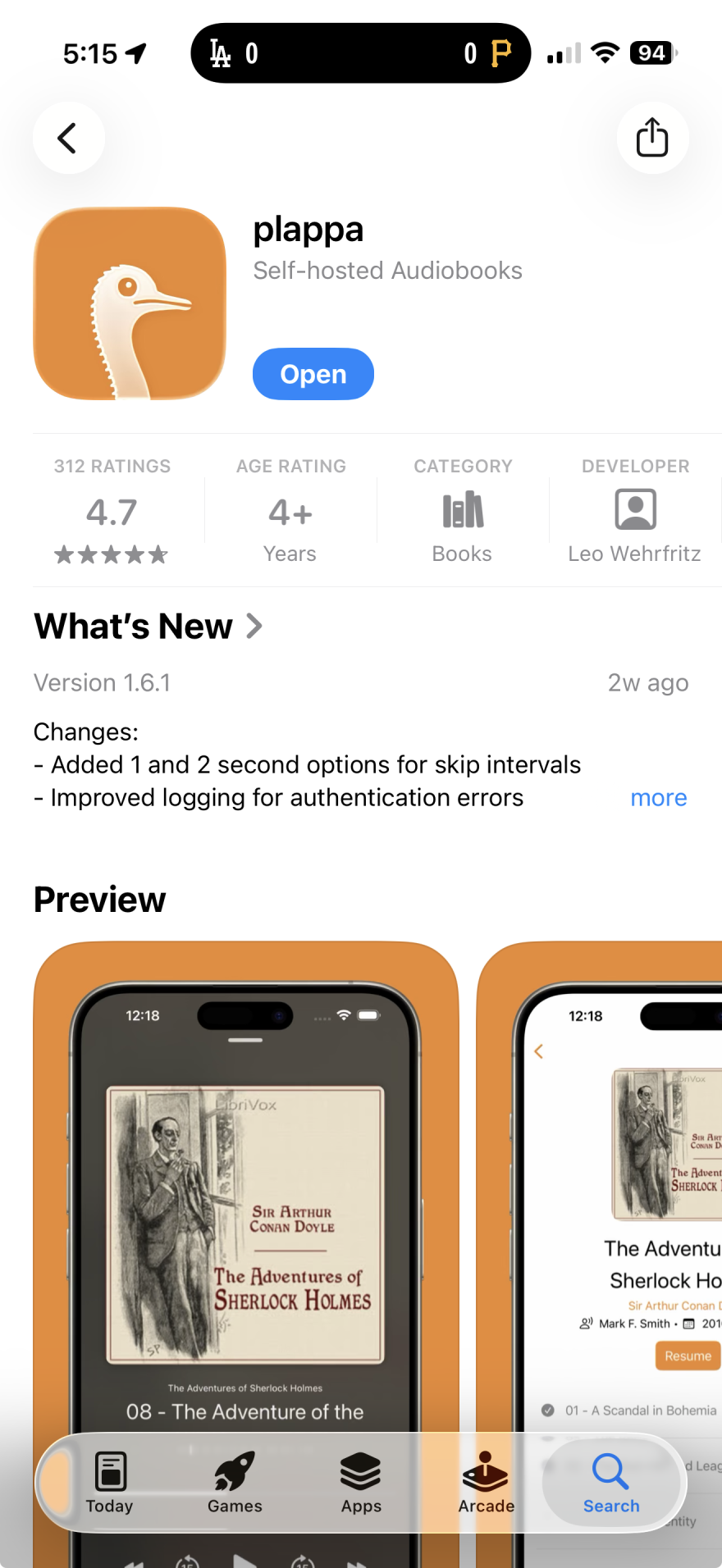
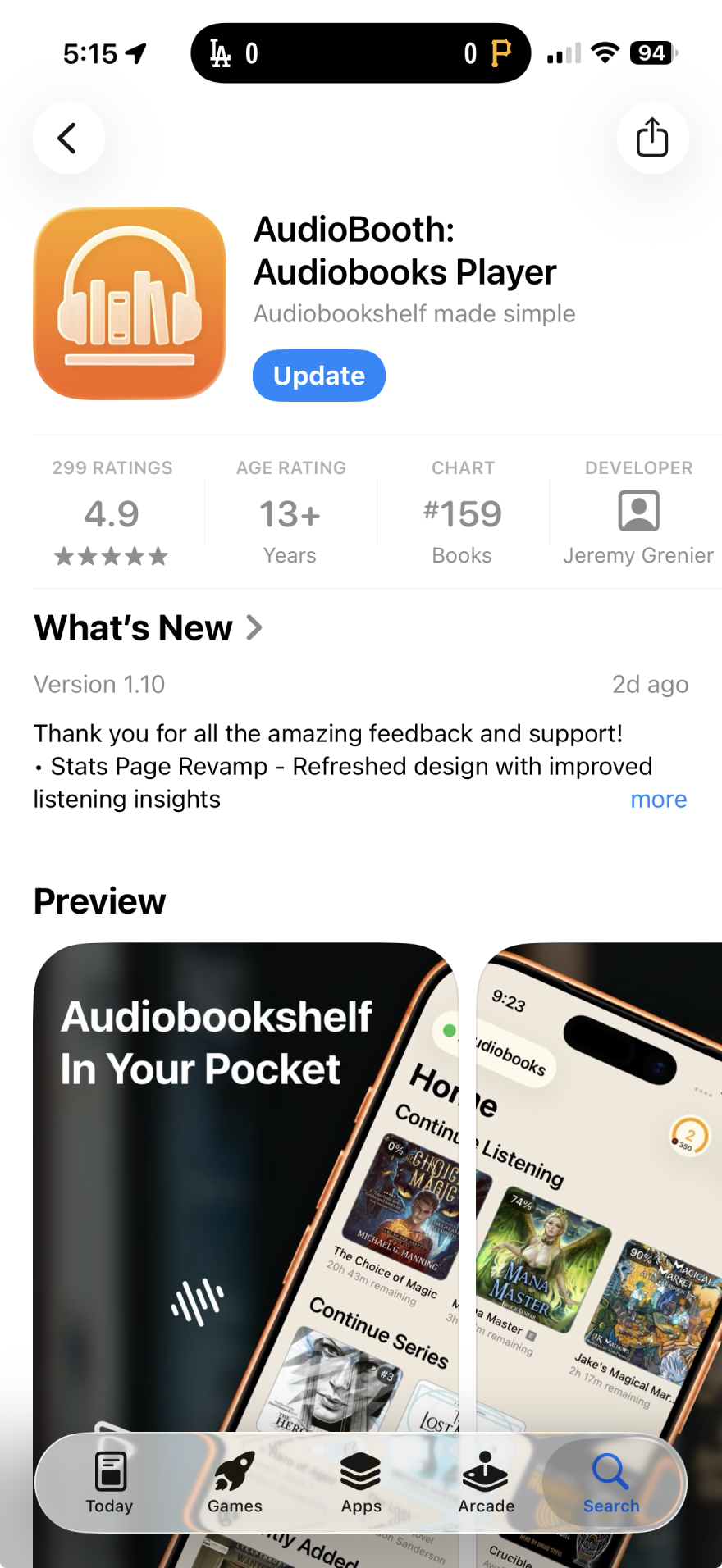
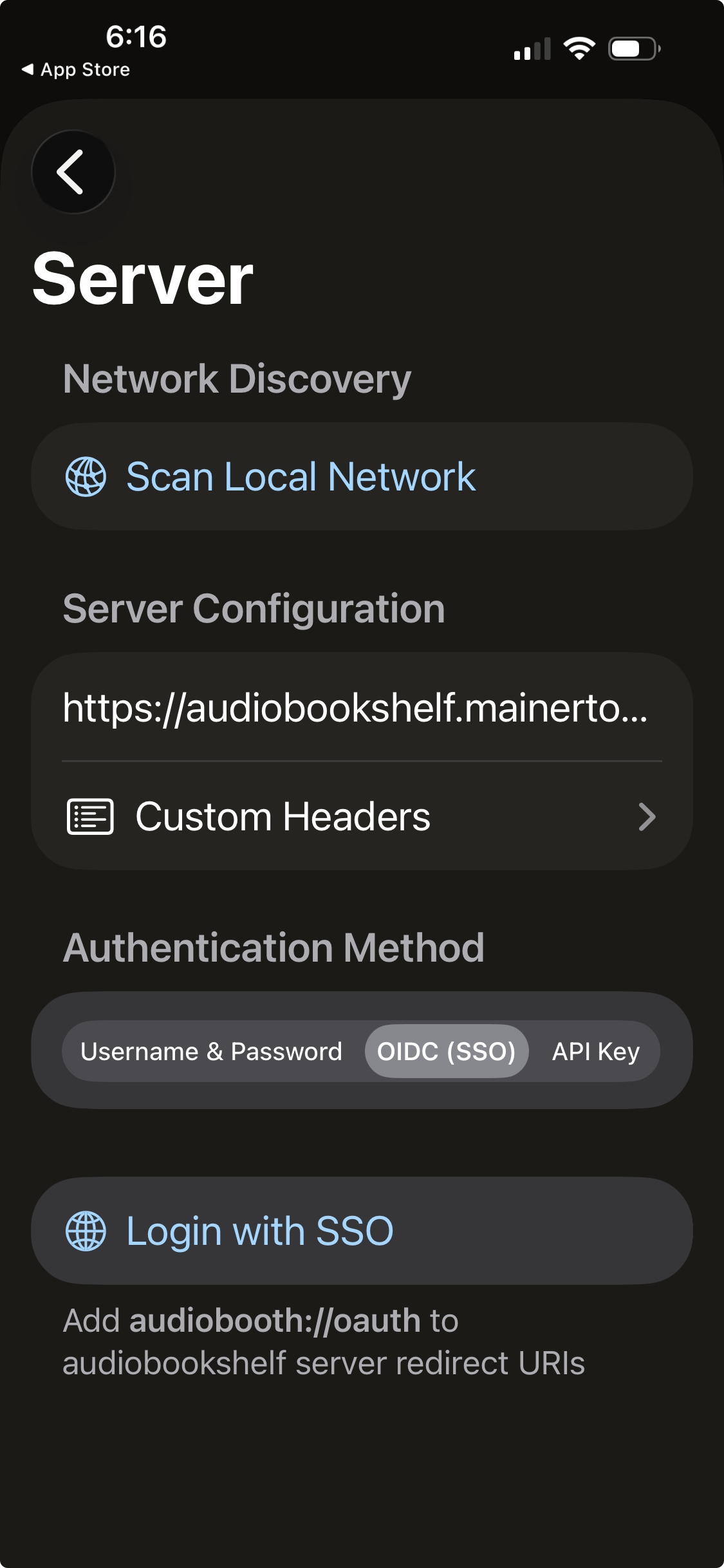
Left to right: plappa option on the App Store, audiobooth option in the App Store (Reccomended), Audiobooth setup: type in the server address, then sign in.
Remember these three things
- ✅ One account for everything.
- ✅ Always choose "Sign in with Authentik" (SSO).
- ✅ Use the same username and password every time.
Need help?
If you get stuck, ask the person who sent you the invite link.
This guide was written with the help of AI.